> This applies to older games only. ClipPin films with your phone or > tablet now — the separate-camera workflows were retired on 2026-08-05. > Games you already filmed that way keep every option below. New games > won't show them, because the footage is already on your device. See > I Used to Film With a Camera.
After the game, ClipPin reads your camera card and works out which video belongs to which period — no hand-picking files.
Import
- Plug a card reader into your iPhone or iPad. (You can plug in the camera itself instead: set USB Connection Mode → Mass Storage and USB Power Supply → Off.)
- Open the game and tap Save Clips to Photos, then Match card footage.
- Tap Select card and choose the card — its top level, not a folder inside it.
- Wait while it reads the card. ClipPin matches each video to a period by length, time of day, and order, then finds the tone in each one.
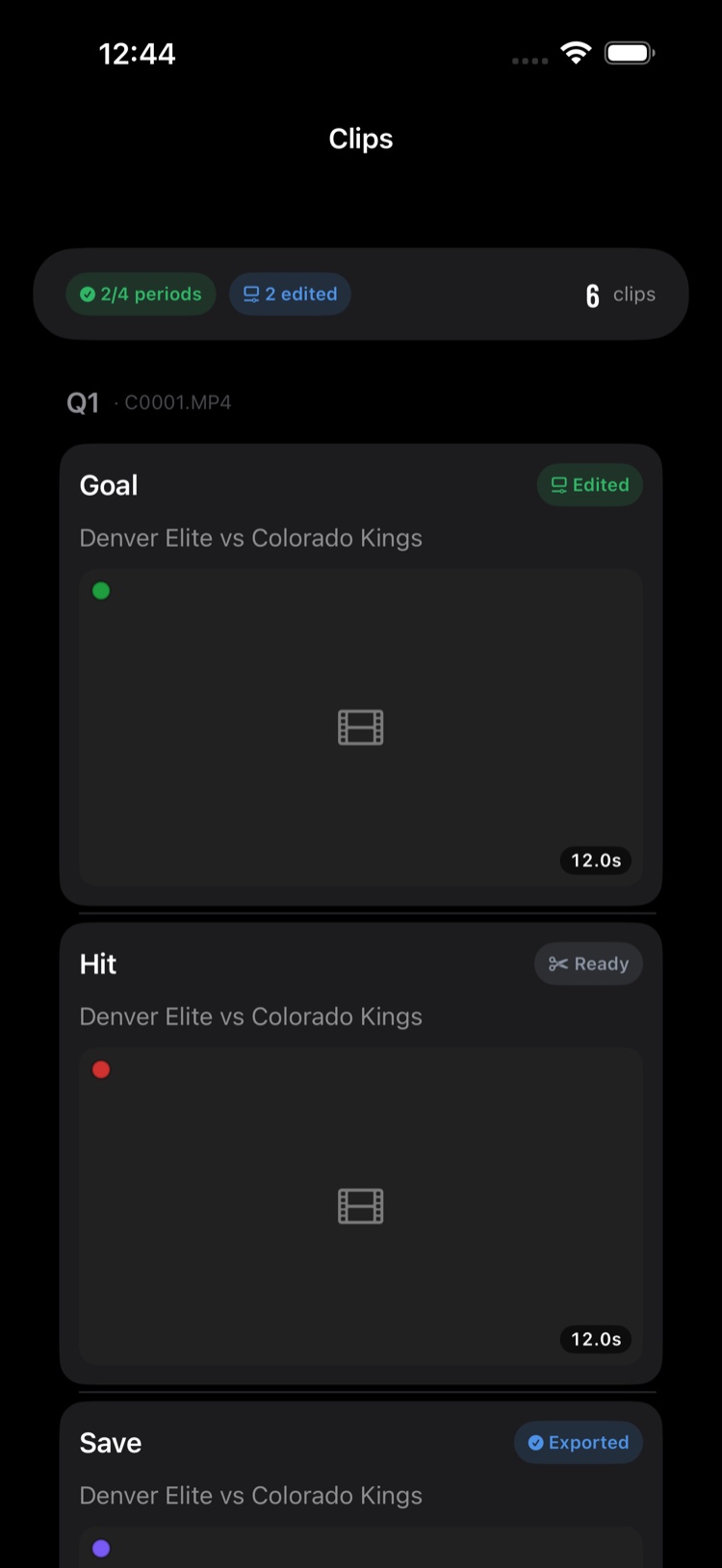
You'll see a summary like 3/4 periods. Tap any period to check or fix it.
If something doesn't match
- "Chirp not found" — tap it, scrub to where the tone plays, and tap The chirp is here. You can hear it: a short beep near the start.
- Wrong card, or a second card? Use Re-match a different card.
- A period the card doesn't cover? Add from Photos instead lets you pick the file by hand.
Then make your clips
From here it's the same as filming on your phone: tap a clip to trim it, or save them all to Photos.
Working away from the card
Save clips for offline editing copies each clip to your device as a small file, so you can unplug the reader and keep editing.
Next: Save Your Clips to Photos · My Marks Don't Line Up With My Camera Footage
Still stuck? Email us at hello@getclippin.com.