When you end a game, the clips are already cut. Every play you marked is waiting for you.
- Tap End Game. After the final score, you land on the clip screen: one clip for every play you marked, in order, grouped by quarter.
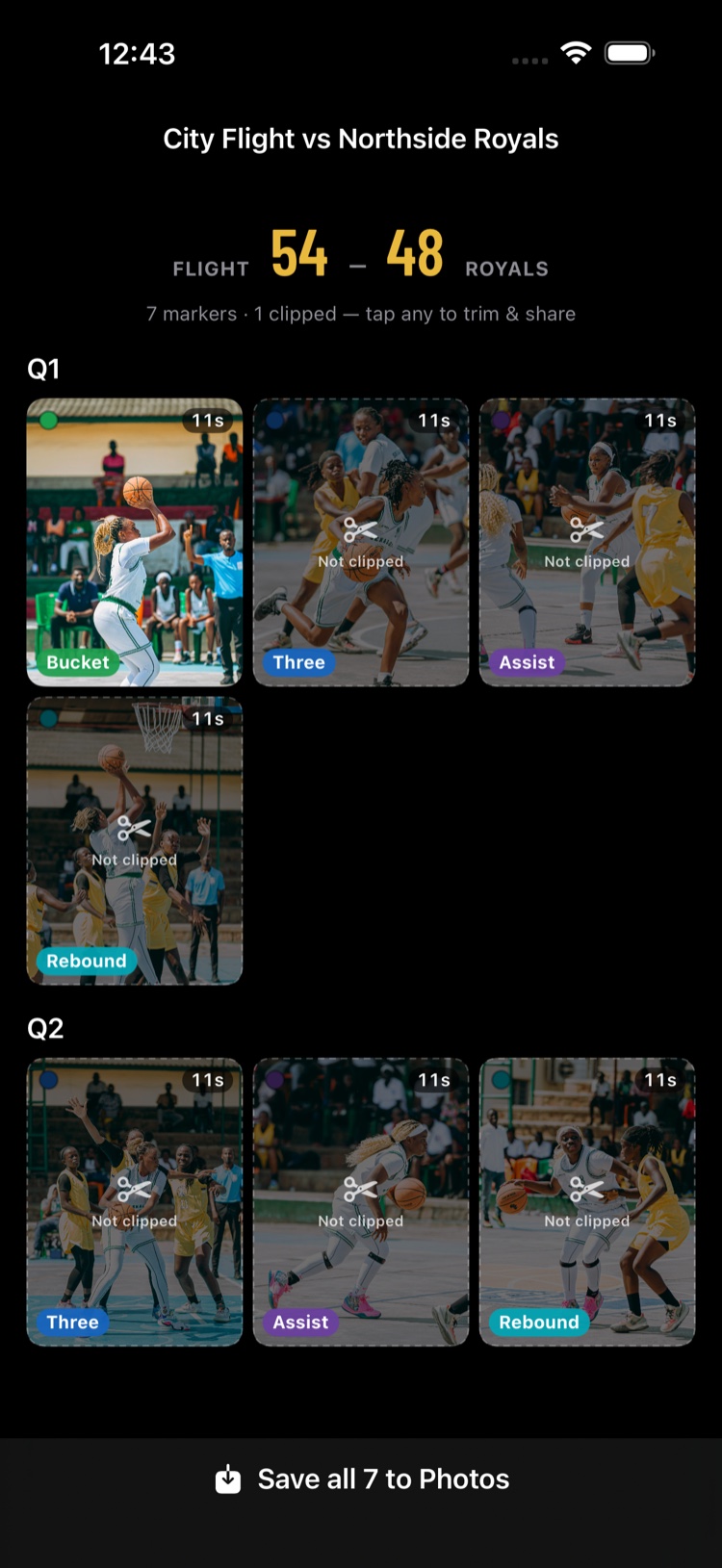
- Tap any clip to watch it and trim it if you like.
- Tap Save N clips to Photos to save everything in one go, or save clips one at a time from inside each clip.
- Watch for the "Saved to Photos" message. Your clips are now in the Photos app, in an album called ClipPin.
Once a clip is in Photos it's yours like any other video — text it, post it, back it up. Deleting the game later never touches it.
Coming back later
Left the field without saving? Open the game any time — the Save Clips to Photos row sits right under the final score. Finished games on your home screen show how many clips are still waiting, as N not saved to Photos yet.
Filmed more than one game today? Your home screen shows Ready to review · N clips to review — tap Review clips to step through them oldest first, or Save all without reviewing to save everything at once.
Do I need a pass?
Your first game starts a free week with everything unlocked, so during that week every clip saves normally. After it ends, filming and saving clips need a pass — see Your Free Week and the Passes.
An older game filmed with a separate camera?
ClipPin films with your phone or tablet now. For an older game a separate camera recorded, the footage is on its card, so there's one extra step: plug in the card and let ClipPin match it up. See Import Footage From Your Camera Card.
Next: Trim a Clip · Share Clips and the Postgame Recap
Still stuck? Email us at hello@getclippin.com.