Once a clip is saved, sharing works the way you'd expect — plus two ClipPin shortcuts worth knowing.
Share a clip
A saved clip is a normal video in your Photos app. Share it from there like any other video — Messages, the family group chat, Instagram, AirDrop.
Share several at once
Pulling together the weekend's best for the group chat?
- Open Clips from the home screen.
- Tap Select, then tap each clip you want. A bar shows how many you've picked and their total length.
- Tap Share.
The recap card
The recap is a scorecard image made for the after-game text: the final score plus pictures from the day's clips, ready to send while you're still in the parking lot.
- On the clip screen after a game, tap the share button at top left.
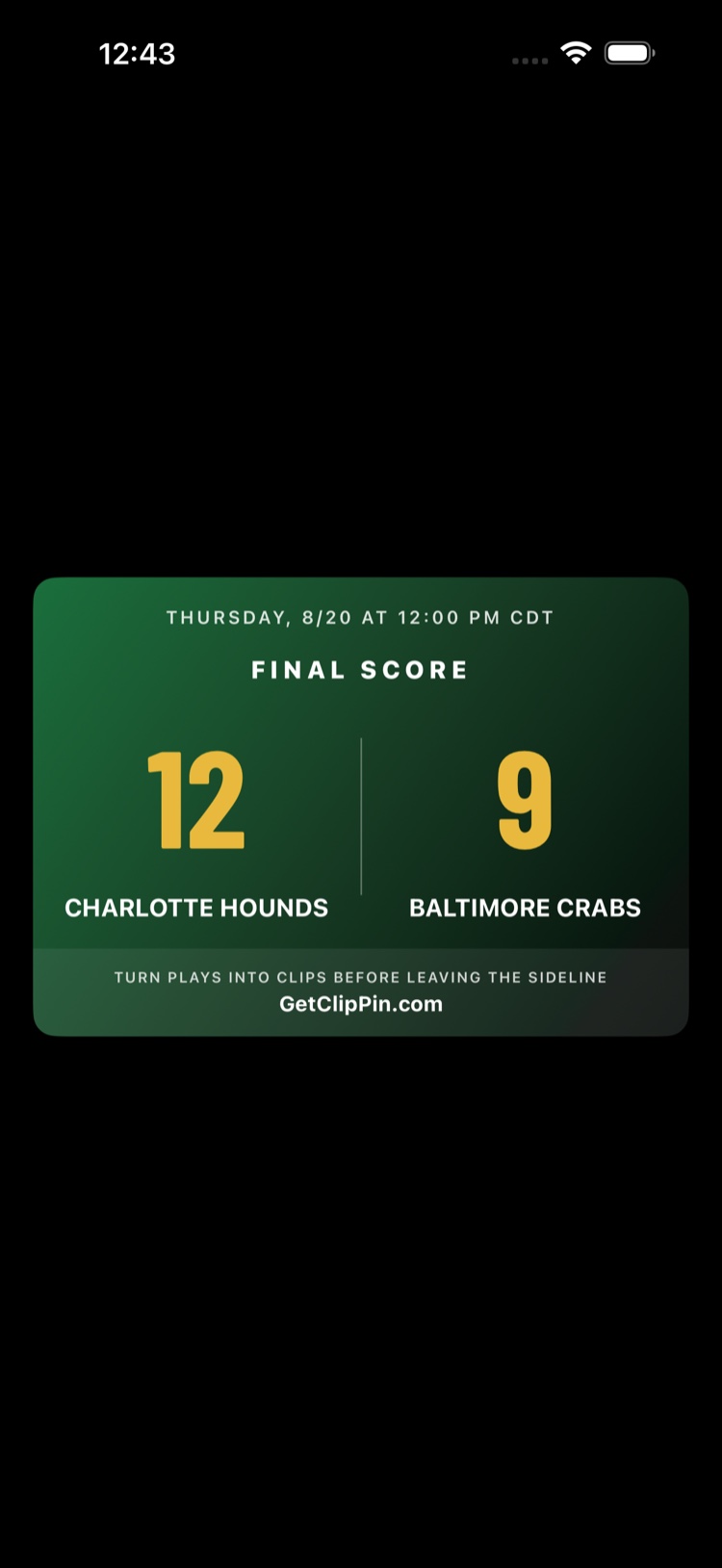
- The share sheet opens with the card and a caption already written — the score, the clip count, and (if you've set one up) your family follow link so anyone can tap through for more.
- Pick where it goes.
Sending to family often?
Instead of texting clips one by one, give family a follow link once — they'll see the live score during games and every clip after, free, with no app to install. See Invite Family to Follow Your Games.
Next: Find Old Clips: The Clips Screen · Invite Family to Follow Your Games
Still stuck? Email us at hello@getclippin.com.