Every recording belongs to a game, so this is the step before filming.
Create a game
- Tap the green + on the home screen, or Set up your first game on the welcome screen.
- What's the team called? Type your team's name, or tap it under Recents, then tap Next. For lacrosse, names from the club list appear as you type — or type any name at all, including "Blue Team."
- Who are they playing? Type the opponent the same way, then tap Next.
- Check the matchup at the top, set the date and time if it isn't today, and tap Create.
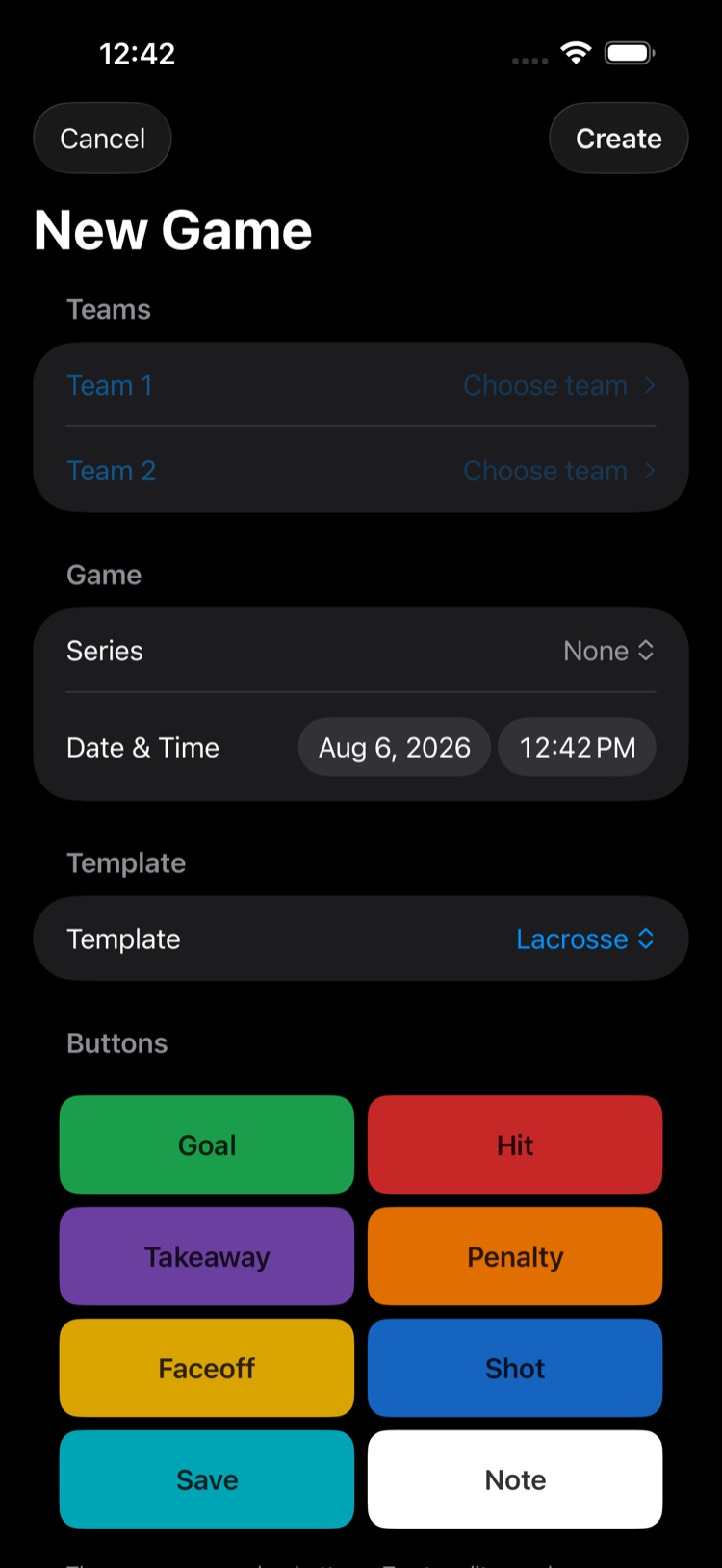
In a hurry? Skip for now goes straight to the form — fill in Team 1 and Team 2 there whenever you like.
The game appears on your home screen with a Start Game button on it when it's next up.
Everything here can be changed afterward — open the game, then Details from the ⋯ menu.
Group a tournament weekend into a tournament
A tournament is a folder for games that belong together: a tournament weekend, or a whole season. Your home screen shows these under Tournaments.
While creating a game, tap the Tournament row and choose New Tournament…, then give it a name. Games you add later can join the same tournament from that same row.
Inside a tournament, games sort with the next one to play at the top, so on Sunday morning the game you're about to film is right there.
You don't need a tournament. A one-off game with None selected sits on your home screen under Other Games.
Filming today, right now?
You don't have to plan ahead. Make the game at the field a minute before kickoff — that's the normal way to use it.
Next: Film a Game With Your iPhone or iPad · Delete a Game or Tournament
Still stuck? Email us at hello@getclippin.com.