Film a game, mark the best plays as they happen, and walk away with clips. Here's the whole loop, start to finish.
- Get ClipPin and open it. It's a free download on the App Store for iPhone and iPad — search for ClipPin. The setup wizard asks what you film. Pick your sport and it sets up your buttons — one for each kind of play. You can change any of this later.
- Create the game. From the welcome screen, tap Set up your first game (or the green + on the home screen later), type your team's name and tap Next, then the opponent's and tap Next, then tap Create.
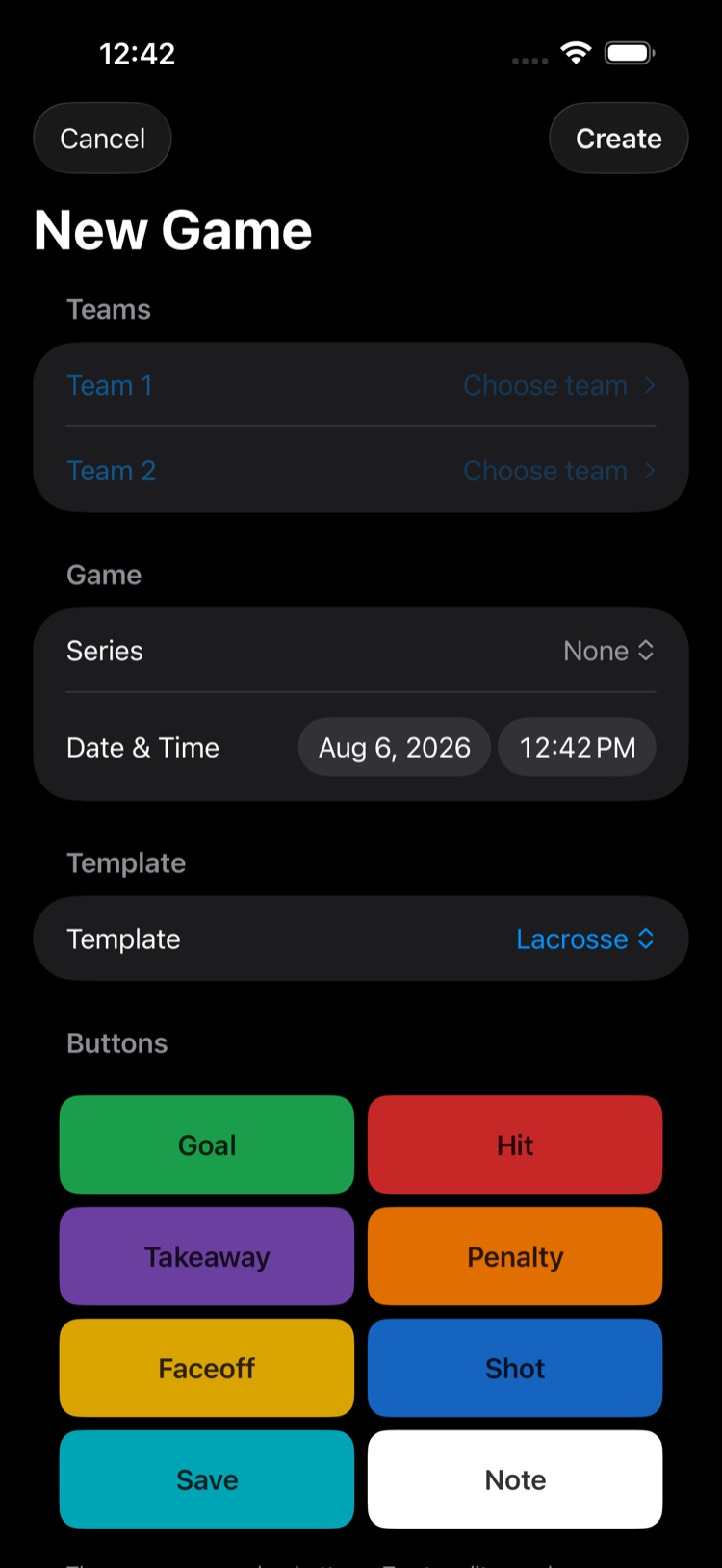
- Tap Start Game. The first time, choose Record with this iPhone. ClipPin remembers your choice.
- Hold your phone the way you want your clips. Sideways gives you widescreen clips. Upright gives you tall clips for texting and social.
- Tap Start Q1 and film the game. (It's named for your sport's first quarter — or half, period, inning, whatever yours uses; H1 for soccer halves, and so on.) When something great happens, tap the button that matches — Goal, Save, Big play. That's a play. A quick buzz confirms it. The clip will include the lead-up, so you won't miss the beginning of the play.
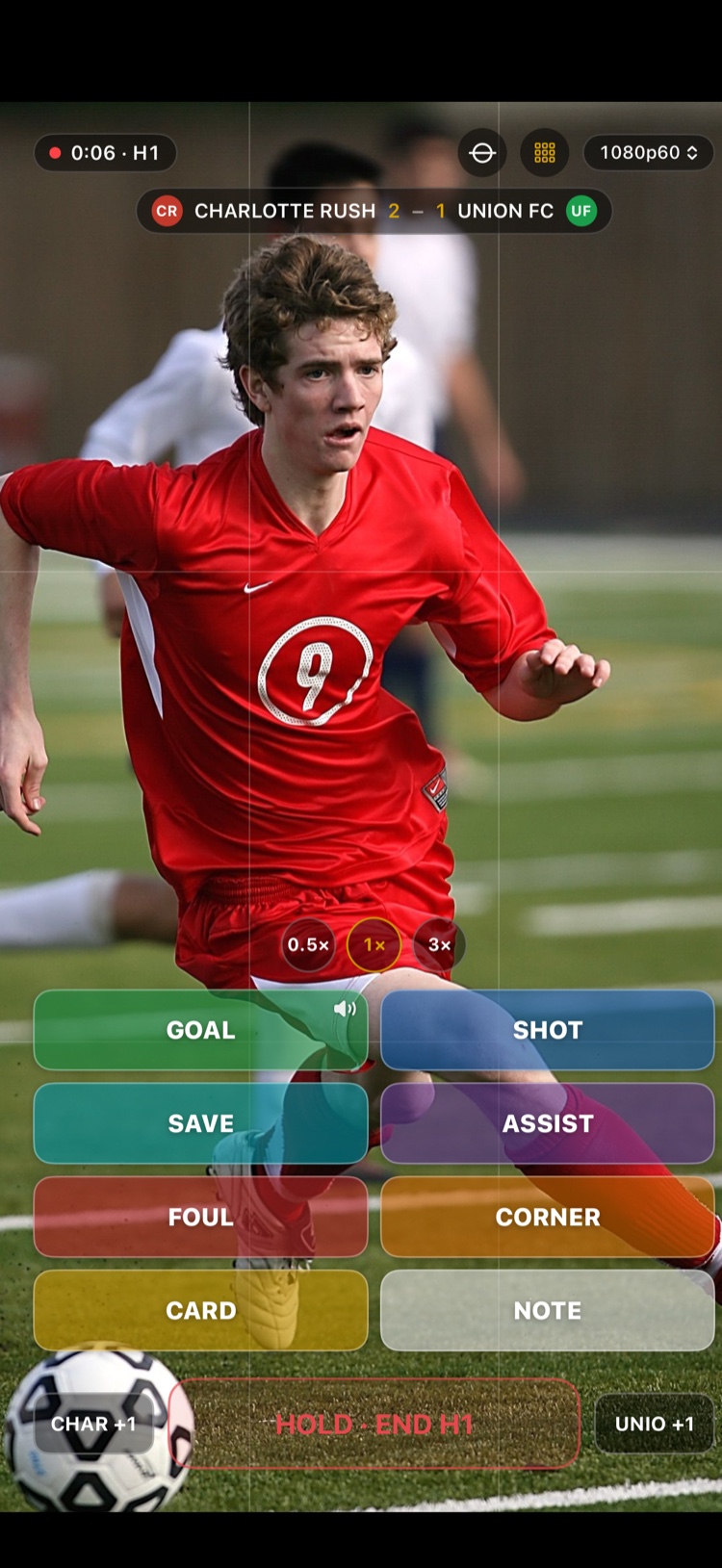
- Keep score with the score buttons in the bottom corners. Tap one to add a point, or press and hold it to take one away.
- At the end of each quarter, press and hold Hold · End Q1 until it fills. When play starts again, tap the green Start Q2 button.
- After the last quarter, tap End Game. Enter the final score if you want.
- Your clips are waiting — one for every play you marked. Tap Save clips to Photos.
That's it. No account, no sign-in — everything works right on your phone, even with no signal. Starting that first game also starts your free week of everything, so every clip you make this week is yours to save.
Next: Film a Game With Your iPhone or iPad · Invite Family to Follow Your Games
Still stuck? Email us at hello@getclippin.com.