A few camera controls sit right on the recording screen. All of them are optional — the defaults work fine.
Zoom
- Tap a zoom button (like 0.5×, 1×, 3×) to jump to that level.
- Touch and drag on the zoom buttons to slide smoothly anywhere in between. Let go and the control tucks itself away.
- Pinch on the picture works too, just like the regular camera.
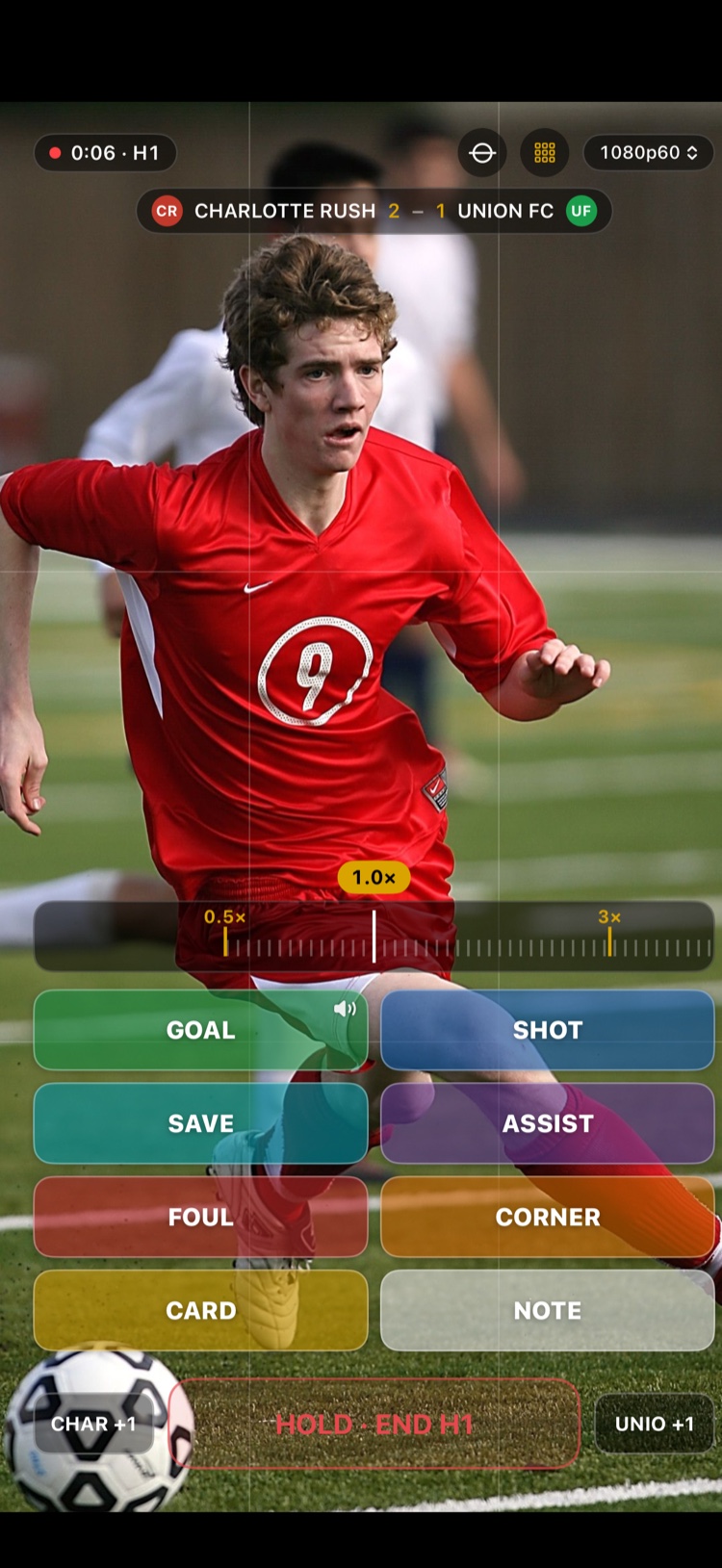
A little zoom goes a long way. The more you zoom, the more every hand wobble shows — if you're past about 3×, consider walking closer instead.
Focus and brightness
Tap the picture on the player or area you care about. A small square appears, and ClipPin sets the focus and brightness for that spot. This helps when the sun is behind the play or the field is half in shade.
The grid
Tap the grid icon at the top of the screen to show faint lines that split the picture in thirds. Lining the field up with them keeps your shot steady and balanced. It turns gold when it's on; the lines never appear in your video.
The level
Filming upright? Tap the level icon to show a line that tells you when the phone is tilted. Straighten the phone and the line settles. Also never in your video.
Next: Film a Game With Your iPhone or iPad · Game-Day Filming Tips
Still stuck? Email us at hello@getclippin.com.