Marking is the heart of ClipPin. One tap while you film, and after the game that play is a clip.
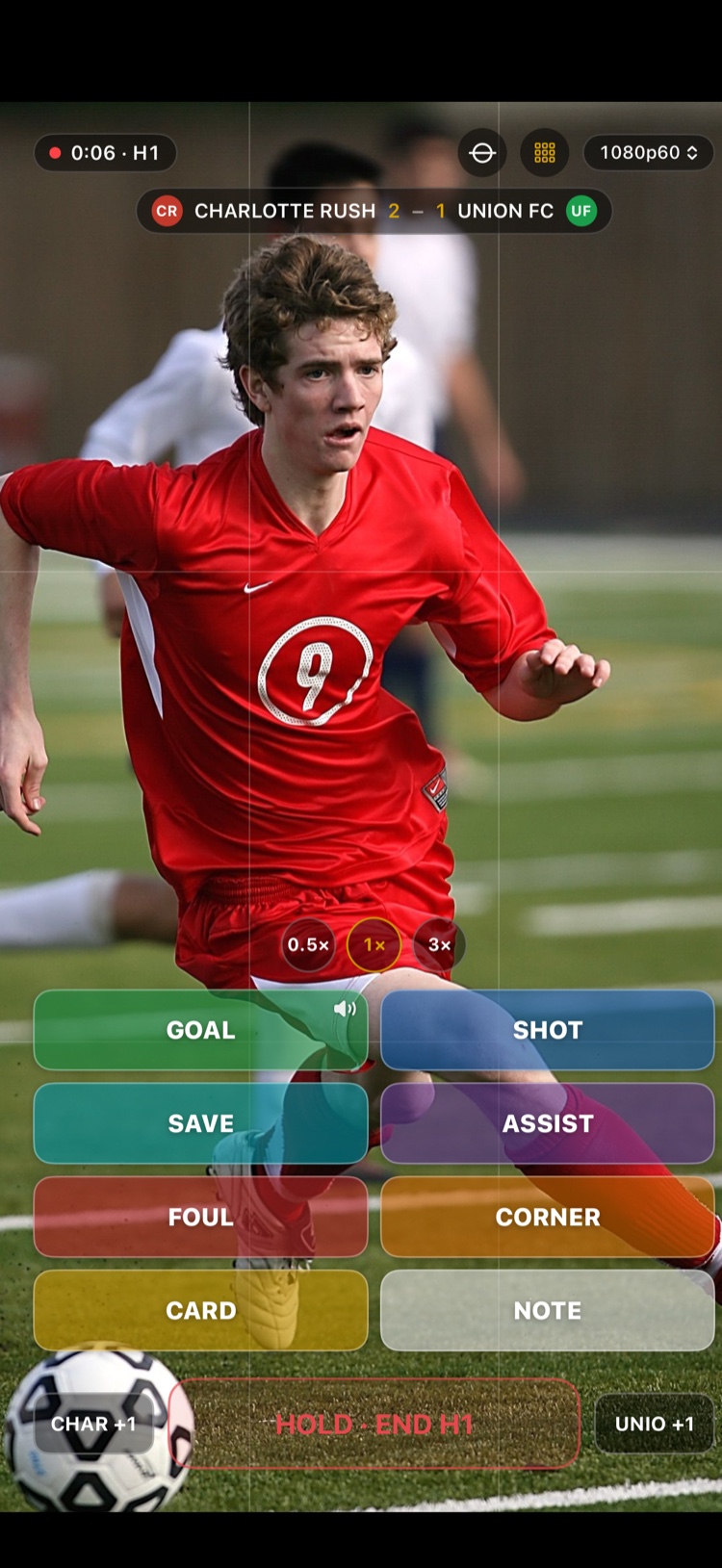
- Keep filming. When something great happens, tap the button that matches the play — Goal, Save, Big play, whatever fits. The buttons are see-through, each with a short colored line under its name, so they stay out of the way of your shot.
- You'll feel a quick buzz and see a brief flash at the edge of the screen. A small Undo button appears for a few seconds — tap it if you didn't mean to. Otherwise, that's it — the play is marked.
You won't miss the start of the play
Tap when the play happens — even a beat late. Each clip automatically includes the lead-up, so a goal keeps the pass that set it up.
Don't look down: mark with a volume button
Press either volume button to mark a play without taking your eyes off the field. It uses your first button (the one showing a small speaker icon). If the play was really a Save, not a Goal, you can change it after the game — the clip is the same either way. Turn this on or off with Volume button marks a play in Settings.
Tapped the wrong button?
No harm done. Tap the Undo button that appears right after, while its timer is still running — or just leave it: the clip is saved no matter which button you tapped, and you can change its label after the game.
Next: Keep Score While You Film · Save Your Clips to Photos
Still stuck? Email us at hello@getclippin.com.